

Anchors and auto-size
A template is filled with different text each time: a short name, then a long one. Auto-size lets a text frame grow to fit its text, and anchors keep the frames around it in place relative to it, so a line below a growing headline moves down with it rather than being covered.
Both are in the frame’s Layout section.
Grow with the text
Section titled “Grow with the text”Tick Auto-size on a text frame, and it takes the size its text needs instead of keeping its own.
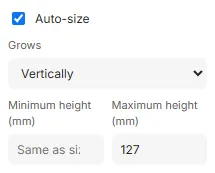
- Grows: Vertically (taller, keeping its width, the usual choice for paragraphs), Horizontally (wider, on one line, for labels and names) or Both ways.
- Growth priority, for Both ways: whether it grows wider first, up to its maximum width, or taller first.
- The minimum and maximum for each way it grows. Without a minimum, the frame is never smaller than its starting size; without a maximum, it grows as far as its text needs.
The frame’s starting width and height, in Position and size, are where it starts from. The frame grows away from its reference point: from the top-left corner it grows down and to the right; give it a bottom reference point and it grows upwards.
Untick Auto-size to give the frame back its own size; its growth settings and limits go too.
Anchor a frame to another
Section titled “Anchor a frame to another”An anchor places a frame relative to the page or to another frame, separately across (Horizontal) and down (Vertical). When the other frame grows or moves, the anchored frame follows.
- Select the frame that should follow, for example a footer under a growing paragraph.
- Under Position → Vertical, choose the frame to anchor to (or Page) instead of Free.
- Choose the point on that frame to measure from: Top, Middle or Bottom; Left, Centre or Right across.
- The Offset is the distance from that point to the frame’s reference point. It is set to keep the frame where it is; type another to move it.
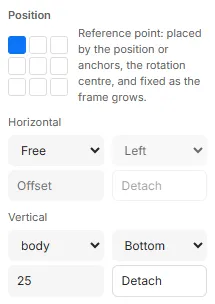
Anchored to a frame, the point starts at its far side (its bottom, or its right), so the frame sits beside it; anchored to the page, at the page’s top or left.
On an anchored axis, the X or Y box shows where the anchor puts the frame, and you can’t type in it. Dragging the frame, or nudging it with the arrow keys, keeps the anchor and changes its offset.
To free an axis again, click its Detach, or choose Free: the frame stays where it is.
The reference point
Section titled “The reference point”The grid of nine points under Position chooses the frame’s reference point. It is:
- the point that its X and Y or its anchors place;
- the point it rotates around;
- the point that stays put as the frame grows.
Changing it doesn’t move the frame. For a frame at the bottom of the page that should grow upwards, choose a bottom point, and anchor it to the page’s Bottom.
Good to know
Section titled “Good to know”- A frame can’t be anchored to itself, or to a frame that already depends on it. The menu of frames to anchor to greys them out, and holding the pointer over one names the chain.
- Deleting a frame others are anchored to asks first, naming them; they stay where they are, free.
- A duplicate keeps its anchors. Pasting elsewhere detaches anchors to frames that weren’t copied.
- Text that still doesn’t fit, at the maximum, is an error in Checks: “Text cannot fit within the frame growth limits”. The template can’t be exported or published until it fits.
- A text frame with a shape keeps its size: it can’t auto-size.
- The minimum can’t be more than the starting size, and the maximum can’t be less. A value that doesn’t suit is refused, with the reason.