

Lists
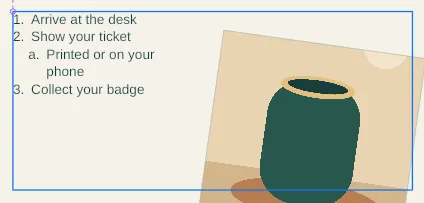
A list is a paragraph setting: each paragraph of the list is an item, with a bullet or a number in front of it. Lists have up to four levels.
Make a list
Section titled “Make a list”- Edit the text frame and select the paragraphs, or put the caret in one.
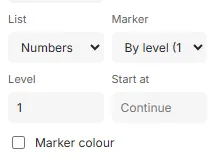
- In the text section, set List to Bullets or Numbers. While editing, CtrlShift8 gives bullets and CtrlShift7 numbers; the same keys again take the list off.
- Type: Enter starts the next item, and Enter in an empty item ends the list.
Levels
Section titled “Levels”At the start of an item, Tab moves it a level in and ShiftTab a level out; or set Level, from 1 to 4. Each level is indented further, and has its own marker unless you choose one.
Markers and numbering
Section titled “Markers and numbering”Marker chooses the bullet or the number’s style:
- Bullets: By level (• ◦ ▪ –), one of those for every level, or Other… for any one character.
- Numbers: By level (1. a. i.), a style such as
1.,1),(1),a.,A.,i.orI., or Other pattern…, where#stands for the number:Step #:, say.
Numbering runs on through the frame’s list items and starts again after a paragraph that isn’t one. To start at a number of your own, set Start at on the first item; leave it empty to run on from the list before.
Marker colour gives the markers a colour of their own; otherwise they take the colour of the item’s text, as they take its font and size.
Lists from a field
Section titled “Lists from a field”When a field’s value is in a list item, each line of the value becomes an item: a field with Coffee, Tea and Juice on three lines gives three items. Empty lines give no item, and an empty value no list.
Good to know
Section titled “Good to know”- The indent of each level and the room after the marker are fixed. The first-line indent doesn’t apply to list items.
- Numbers line up on their right, so 9. and 10. align.
- In a right-to-left paragraph the marker is on the right.