

Proofing
A screen shows more colours than a press can print. Proofing shows a print template’s page as it will print, through its printing condition, so that you see a too-bright RGB colour dull, or an overprinting ink mix with what’s beneath, before it goes to the printer.
Proofing is for templates with the print export profile: see Print output.
Proof colours
Section titled “Proof colours”Turn on Proof print colours in More actions (⋯) → Settings…, or press CtrlShiftY. RGB colours and images show as the printing condition prints them, and a chip by the zoom says which condition, for example “Proofing: FOGRA39”. Click the chip to turn proofing off.
CMYK and spot colours always show through the printing condition, proofing or not.
Overprint preview
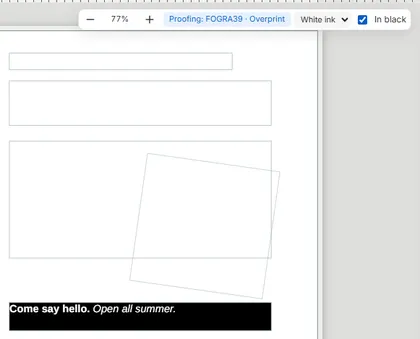
Section titled “Overprint preview”On the canvas, a colour normally covers what is beneath it. In print, an overprinting ink mixes with the inks beneath instead. Overprint preview (CtrlAltShiftY) shows the page as the press prints it, ink by ink. It turns proof colours on.

One plate at a time
Section titled “One plate at a time”With overprint preview on, the menu by the zoom shows All plates as printed, or one plate alone: Cyan, Magenta, Yellow, Black, and each spot colour. Tick In black to see the plate as ink amounts, black on white, as a printer’s plate viewer shows it.
The paper
Section titled “The paper”- A page’s own Page colour of Paper shows the stock it prints on, proofing or not: see Pages.
- Simulate paper colour, while proofing, shows the printing condition’s own paper white and the press’s real black, and white ink, metallics and varnish as they print.
- Show varnish as a gloss, while proofing, shows varnish as a sheen, rather than not at all.
- Adjust RGB colours for this paper (approximate), on a page with a paper colour, prints RGB colours and images so they come out as intended on that stock. It is an approximate model: for exact results, use a printer’s profile made for the stock.
Good to know
Section titled “Good to know”- Proofing shows colours as closely as your screen allows: it is a guide, not a contract proof. Ask your printer for a proof for colour-critical work.
- A PDF viewer usually doesn’t show overprinting, so the preview’s PDF may look different: use overprint preview in the editor, or Acrobat’s Output Preview.
- Proofing only changes what you see: nothing in the template or its PDF changes.