

Shapes and soft masks
A frame is a rectangle until you give it a shape. An image then shows only inside the shape, a text frame’s text flows inside it, and text that wraps around the frame follows it.
Give a frame a shape
Section titled “Give a frame a shape”In the frame’s Shape section, choose a Shape:
- Rectangle (no shape): the frame’s own box.
- Ellipse: the ellipse that fits the frame.
- Rounded rectangle, with its Corner radius.
- Draw shape…: draw one with the pen (below).
- Shape from SVG file…: the shapes in an SVG file, stretched to fill the frame.
The shape follows the frame as you resize it. Remove shape, in the frame’s menu, gives it back its rectangle.
Draw a shape
Section titled “Draw a shape”After Draw shape…:
- Click on the canvas for each corner point; drag instead of clicking for a smooth point, pulling its curve handles out.
- Click the first point to close the shape, or press Enter once there are three points or more.
Press Esc to drop the drawing and keep the shape the frame had. The whole drawing is one step to undo.
Edit a shape point by point
Section titled “Edit a shape point by point”Click Edit shape in the Shape section, or select the frame and press E. An ellipse or rectangle turns into points you can move.
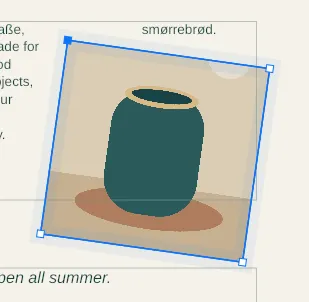
- Drag a point to move it. Click a point to select it: its curve handles show, and you can drag them too.
- Double-click an edge to add a point on it.
- Alt+click a point, or click Corner / smooth, to switch it between a corner and a smooth curve.
- Press Delete, or click Delete point, to remove the selected point. A shape keeps at least three.
Press Esc or Enter, click Done, or click outside the frame to finish. Each change is a step to undo.
Shapes on text frames
Section titled “Shapes on text frames”A text frame with a shape keeps its size: its text flows inside the shape, and auto-size is turned off. Text inset keeps the text that far in from the shape’s edge, or from the frame’s edge on a plain rectangle. Text that doesn’t fit is reported in Checks, as for any frame of fixed size.
Feather an edge
Section titled “Feather an edge”Feather, in the Shape section, softens a frame’s edge: it fades out over that distance towards its shape, or its rectangle.
Fade a frame out
Section titled “Fade a frame out”The Soft mask menu in the frame’s Appearance section fades the frame across itself:
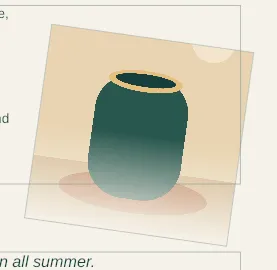
- Fade: from fully shown to hidden. Choose its Type (Linear or Radial), its Angle (degrees) for a linear fade (90 fades towards the bottom), and where it starts and ends: fully shown up to Start (%), fully hidden from End (%). Invert (hidden at the start, shown at the end) turns it round.
- Image…: an image’s brightness sets how much shows: white shows the frame, black hides it. Choose the Mask image, its Placement (Stretch to the frame or Fill, keeping its proportions), and Invert (black shows, white hides) if you need.
Good to know
Section titled “Good to know”- A shape from an SVG file takes the outlines of its paths; their colours are left out. The file must be the simple kind Paprika reads: see Images. A shape has at most 2000 segments.
- A mask image is a bitmap: the Mask image menu doesn’t offer SVG artwork. A mask image below the template’s minimum resolution is warned about.
- Feathers and soft masks print as they show: they are part of the PDF.