

Brand kits
A brand kit holds your organisation’s shared colours, paragraph and character styles, images, components and fonts, each with a usage rule such as “Headings only”. A template linked to a kit uses its items alongside its own, and follows the kit when it changes.
Brand kits are kept on your organisation’s Paprika server, so working with them needs the editor to be connected.
Link a template to a kit
Section titled “Link a template to a kit”In More actions (⋯) → Settings… → Document, choose the kit in Brand kit.
The kit’s items are then offered under Brand kit, ahead of the template’s own: in the colour menus, the style menus, the Image menu and the Components list. Point at one to see its usage rule.
Each time you open the template, or the editor reconnects, it takes the kit’s items as they are now, and tells you when they changed. Choose None to unlink it: the template keeps the kit’s items it has, as its own.
Use and detach kit items
Section titled “Use and detach kit items”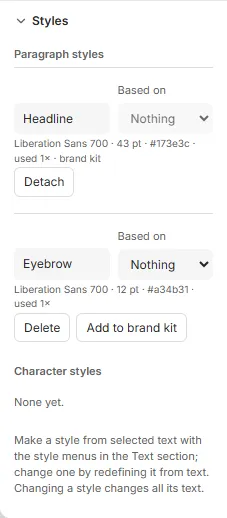
In the Swatches and Styles sections, the kit’s items are listed with the template’s own, marked brand kit. They can’t be changed in the template. A swatch’s Detach and Add to brand kit are in the ⋯ menu at the end of its row.
- Detach copies a kit item into the template as its own. Everything using it uses the copy, which no longer follows the kit.
- Add to brand kit, on one of the template’s own swatches or styles, sends it to the kit. The template then uses the kit’s, linked.
Components in a kit
Section titled “Components in a kit”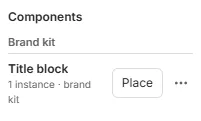
A component of the template’s own joins the kit from its ⋯ menu in the Components list (Actions for Title block): Add to brand kit. A kit’s component uses only the kit’s colours, styles and images, so when it uses some of the template’s own, the editor names them and asks to add them to the kit too. The fields its parts show go with it: a template placing it gets those it hasn’t got.
Every template linked to the kit then lists the component under Brand kit in its Components list, to Place as any other. Its instances follow the kit: when the kit’s component changes, they show the new parts, each keeping its own box and place.
To change a kit’s component, edit it in place in any template using it: double-click an instance, or choose Edit in place in its ⋯ menu with an instance on the page. Above the canvas, Save to brand kit takes the place of Done. It asks first, naming the templates that use the component; they follow it when they’re opened or republished. Cancel, or Esc, puts it back as the kit has it, asking first if you changed it. Saving needs the editor to be connected.
Detach, in its ⋯ menu, copies a kit’s component into the template as its own, named “(own)”: the template’s instances use the copy, which no longer follows the kit.
Manage kits
Section titled “Manage kits”Settings… → Brand kits… opens the kits of your organisation.
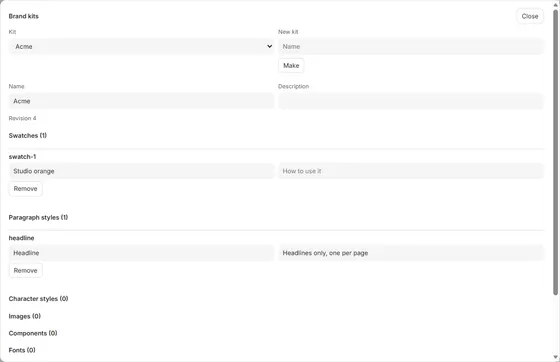
- Make a kit: type its name under New kit and click Make.
- Rename it, or describe it, in Name and Description.
- Edit an item’s name and usage rule in its row, or Remove it. Removing an item that templates use asks first. A component’s row also shows its size and how many parts it has.
- Add an image with Upload image…
- Delete kit deletes the whole kit, after asking, and names the templates that use it.
Every change to a kit gives it a new revision, shown under its name.
Swatches, styles and components join a kit from a template, with Add to brand kit. Fonts join a kit through Paprika’s API: ask whoever runs Paprika for your organisation.
When the brand changes
Section titled “When the brand changes”A published template version never changes, so documents made from it stay the same. When a kit changes, its templates take the change:
- the next time you open one, and when you publish it;
- all at once with Republish templates using this kit, in the Brand kits dialog. It publishes a new version of every template whose latest version used an older revision of the kit, and reports how many were published, how many were already up to date, and any that failed.
A template is checked as for any publish, so one that the change breaks, for example with text that no longer fits, fails and is listed with its errors.
Good to know
Section titled “Good to know”- A template’s own swatches, styles and components can’t have the same name as one of its kit’s. Rename them before linking the kit.
- A template’s own styles may be based on the kit’s styles.
- When a kit item a template uses is removed from the kit, the template keeps it, marked no longer in the kit, and Checks shows an error with Detach to keep it as the template’s own.
- When a kit is deleted, its templates keep its items as their own.
- Templates saved as packages carry the kit’s items with them, so they open, preview and export without the server.