

Tab stops
A tab takes the text after it to the next tab stop: that’s how a price list, a menu or a table of contents lines up in columns. Tab stops are a paragraph setting.
Set tab stops
Section titled “Set tab stops”- Edit the text frame and select the paragraphs, or put the caret in one.
- In the text section, under Tab stops, click Add stop.
- Set its Place (pt), measured from the frame’s text edge, and its Alignment.
- Type the text, with Tab before each column.

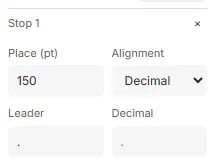
The alignments:
- Start: the text starts at the stop.
- Centre: the text is centred on it.
- End: the text ends at it.
- Decimal: the text lines up on a character, the point in a price for example: set it in Decimal.
Leaders
Section titled “Leaders”A Leader fills the room before a stop with a character, or up to four, such as . for a dotted line or -. Leaders line up from line to line.
Change or remove a stop
Section titled “Change or remove a stop”Change a stop’s Place (pt) to move it; the stops stay in order of place. Click its × to remove it. When the selected paragraphs have different stops, the section says so, and a change gives them all the same.
Good to know
Section titled “Good to know”- Past the last stop, or without stops, tabs go every 36 pt.
- A paragraph has up to 20 stops, each at a place of its own.
- When the text is already past a stop, the tab takes it to the next one. When no stop is left on the line, the text after the tab goes to the next line.
- A line with a tab starts at the line’s start, whatever the paragraph’s alignment.
- A tab in a field’s value works as one you typed.
- At the start of a list item, Tab changes the item’s level instead of typing a tab.