

Colour
A swatch is a named colour of the template. Use swatches for the colours a template uses again and again: change a swatch, and every fill, stroke, text and page colour using it changes too.
The swatches are in the Swatches section, shown when nothing is selected: click an empty part of the page, or press Esc until nothing is.
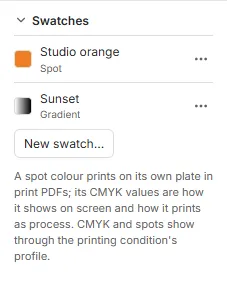
Make a swatch
Section titled “Make a swatch”- Click New swatch…
- Give it a Name.
- Choose its Kind, and its colour:
- RGB: a colour from the colour picker, for screen work.
- Process CMYK: cyan, magenta, yellow and black percentages, printed with the four process inks.
- Spot colour (own plate): an ink of its own, such as a Pantone colour, printed on its own plate. Its CMYK values are how it shows on screen, and how it prints if it has to be printed as process.
- Gradient: see Gradients below.
- Click Add swatch.
Choose the swatch in any colour menu, under Swatches, at a tint if you need a lighter shade: see Choosing a colour.
Change or delete a swatch
Section titled “Change or delete a swatch”Click a swatch’s name to change its name or colour, then Save swatch: everything using it follows, under its new name too.
A swatch’s other actions are in the ⋯ menu at the end of its row (Actions for Studio orange), or right-click the row: Edit…, Delete, and Add to brand kit when the template has a brand kit.
Delete asks first when the swatch is in use. Where it was used, its colour stays, as a colour of its own (a spot becomes its CMYK values). A gradient in use can’t be deleted: choose other colours where it is used first.
Gradients
Section titled “Gradients”A gradient swatch blends from one colour to another, through as many as eight stops.
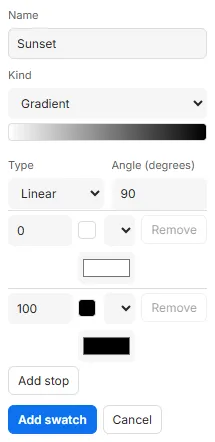
- Type: Linear, along a line at an Angle (degrees) (0 runs to the right, 90 downwards), or Radial, from the middle out.
- Each stop is a position (0 to 100 %) and a colour: an RGB or CMYK colour, or a swatch. Add stop adds one between the last two; Remove takes one away, down to two.
A gradient fills a frame or a page like any colour. A gradient between spot colours prints on those colours’ plates.
Overprinting
Section titled “Overprinting”In print, a colour normally knocks out what is beneath it: the inks beneath aren’t printed there. Tick Overprint (for varnish and white) on a CMYK or spot swatch to print it on top of what’s beneath instead, as a varnish, a white ink or a trapping colour needs. RGB colours always knock out.
For a spot, Kind of ink says how it shows over the paper when proofing: Normal, Opaque white, Varnish (clear) or Metallic.
Overprinting isn’t shown on the canvas as it prints: turn on Overprint preview (CtrlAltShiftY) in Settings… to see it: see Proofing.
Good to know
Section titled “Good to know”- A spot colour can’t be called Cyan, Magenta, Yellow, Black, Registration, All or None, whatever the capitals: a PDF reserves those names. Its name is at most 127 bytes.
- A spot colour that nothing uses is warned about in Checks, so you can delete it.
- Spot colours print on their own plates in print PDFs only. A screen PDF shows them in their CMYK values. Print spot colours as process, in the Export section, prints them in CMYK too: see Print output.
- CMYK and spot colours show on screen as the template’s printing condition prints them.
- Swatches from your organisation’s brand kit are listed with the template’s own, marked brand kit; they are changed in the kit, not here. See Brand kits.
Related
Section titled “Related”- Fills and strokes
- Brand kits
- Pages: a page’s colour.