

The workspace
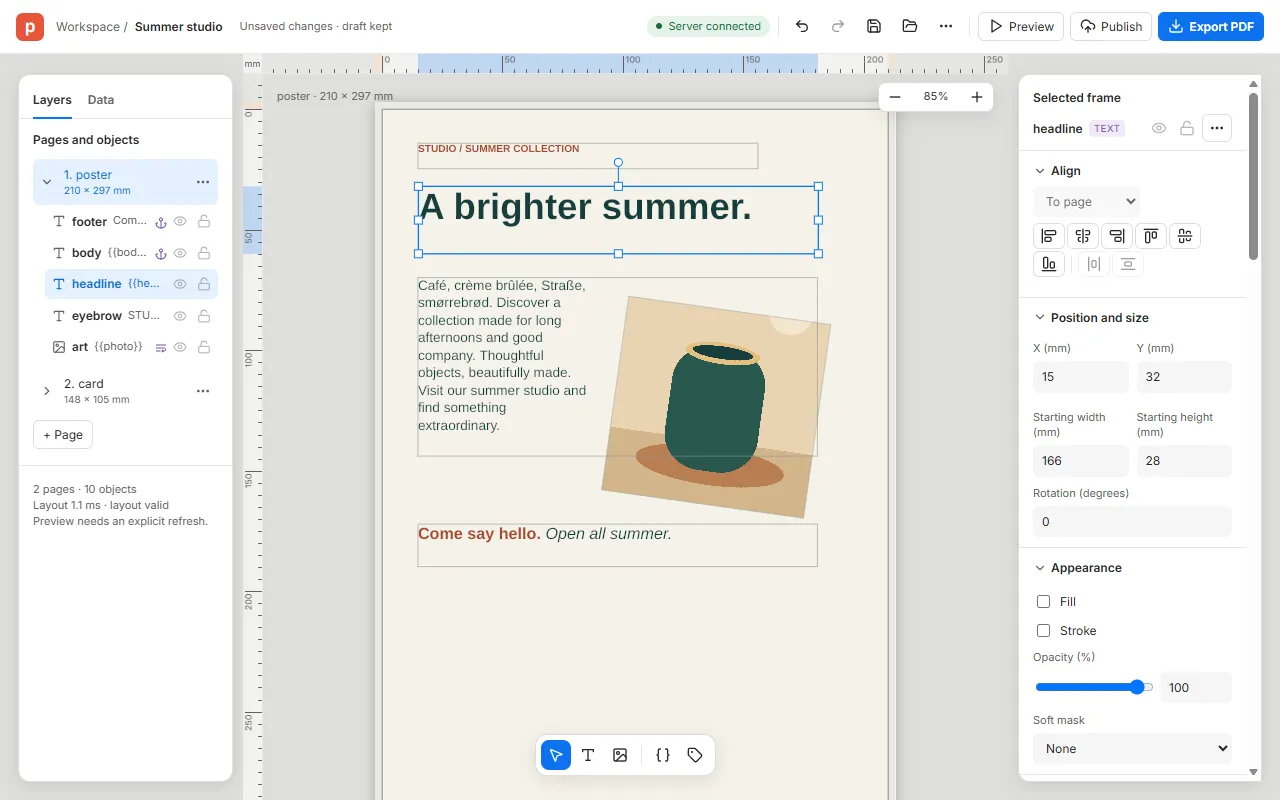
The editor is one window: the page you are designing in the middle, the layers of the template on the left, and the properties of what you have selected on the right. Everything you change is kept as you go, and can be undone.
The header
Section titled “The header”From left to right:
- The template’s name. Click it to rename the template; the name is also the file name when you save it.
- Its state: Saved when it matches the package you last saved or opened, Unsaved changes · draft kept when it has changed since. See Drafts and working offline.
- The server’s state: Server connected, or Offline when the editor can’t reach it.
- Undo and Redo, then Save package and Open package (see Packages).
- More actions (⋯): New template…, Open from server…, Paste frames, Check agreement and Settings…
- Preview, Publish and Export PDF.
The panels
Section titled “The panels”On the left, two tabs:
- Layers lists the template’s pages and, under each, its frames, the top-most first. Click a row to select its frame, even one you can’t reach on the canvas; Shift+click adds to the selection. The eye hides a frame and the padlock locks it. Drag a row to change the order, or double-click a selected name to rename it. + Page adds a page.
- Data holds the template’s fields and their sample values.
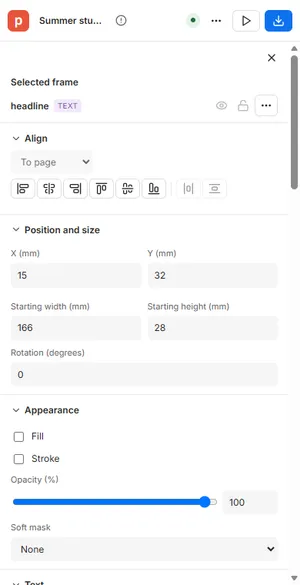
On the right, Properties shows what you can change about the selection. With nothing selected it shows the page, its swatches, styles and export settings; with a frame, its position and size, appearance, and its text or image. With several frames selected, a setting they don’t share shows Mixed, and typing a value sets it on all of them. Click a section’s heading to fold it away. The last section, Checks, lists the template’s problems: its count turns red when one of them stops the template from being exported.
The canvas
Section titled “The canvas”The tools are at the bottom of the canvas: Select (V), Text frame (T) and Image frame (R). Drag on the page with a frame tool to draw a frame, or click for a frame of the default size; the tool goes back to Select afterwards.
The zoom is at the top right of the canvas: Zoom out, the percentage (click it for Fit page, Fit width, 50 %, 100 % and 200 %) and Zoom in, from 10 % to 1600 %. Hold Ctrl and turn the mouse wheel to zoom where the pointer is; hold the space bar and drag to move around. The editor remembers the zoom.
Right-click menus
Section titled “Right-click menus”Right-click a frame, the empty page, a row of the Layers list or text you are editing for what you can do there. From the keyboard, ShiftF10 or the Menu key opens the same menu for the selection.
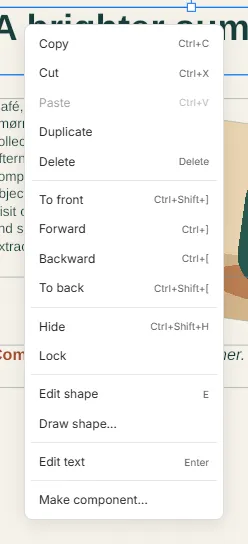
An item that can’t be used yet is greyed out; point at it to see why, for example Unlock it first on a locked frame.
Preview
Section titled “Preview”Preview shows the template as a PDF, made by the server with the sample values. After a change the preview is marked Out of date: click Refresh to make it again. Back to editor or Esc takes you back where you were. For exporting, print PDFs and the preflight, see Print output; for publishing, Publishing.
Narrow screens and touch
Section titled “Narrow screens and touch”On a narrower window the panels slide away so the page has room. Below about 1100 pixels wide, Properties becomes a button at the top right of the canvas that opens them over it; below about 760 pixels, Layers and Data do too. One panel is open at a time: Close panel, Esc or its button closes it.
On a touch screen, pinch with two fingers to zoom, and press and hold a frame for its menu.
Light and dark
Section titled “Light and dark”The editor follows your computer’s light or dark setting, and changes with it. The page itself, the preview and the exported PDF look the same in both.
Good to know
Section titled “Good to know”- Undo goes back up to 40 steps. Opening a package, starting a new template or restoring a draft starts the history again.
- Keys typed into a box are the box’s: they never trigger a shortcut. See Keyboard shortcuts for all of them.
- Preview and Export PDF need the server: while it can’t be reached they are greyed out, and say so.