

Pages
A template has one or more pages, each with its own size and bleed. The pages are listed in the Layers tab, each with its frames beneath it; the page you are working on is the one shown on the canvas.
Add a page
Section titled “Add a page”- In the Layers tab, click + Page.
- Choose Same as current page, one of the sizes, or Custom size… to type your own.
The new page goes after the page you are on, and is shown. Same as current page copies its size, bleed and page colour; a size from the list comes in portrait, with the current page’s bleed.
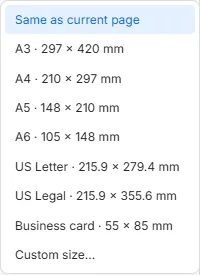
The sizes follow the template’s units: paper sizes in millimetres, and screen sizes (posts, stories, banners) in pixels.
Change a page’s size and bleed
Section titled “Change a page’s size and bleed”Click an empty part of the page, or press Esc until nothing is selected: the properties show the Page section.
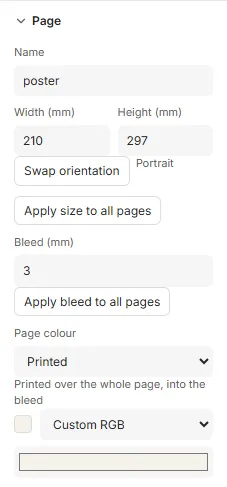
- Name: the page’s name, as the Layers tab lists it.
- Width and Height: type a size and press Enter. Swap orientation turns a portrait page landscape, and back.
- Bleed: how far colour and images may run past the page’s edge, to be trimmed off in print. The canvas shows the bleed as a band around the page.
- Apply size to all pages and Apply bleed to all pages give every page this page’s.
- Page colour: None (white paper), Printed (a colour printed over the whole page, into the bleed) or, for print, Paper (the stock’s own colour, which nothing is printed for). A printed colour is chosen as any colour.
Frames don’t move or change size when the page does. A frame left wholly outside a smaller page is reported in Checks, but doesn’t stop export.
Duplicate, reorder and delete pages
Section titled “Duplicate, reorder and delete pages”Each page’s More actions (⋯) in the Layers tab, or a right-click on its row, gives Move up, Move down, Duplicate and Delete. You can also drag a page’s row up or down, or select it and press AltUp or AltDown.
- Duplicate puts a copy after the page, named after it with
-copy. Its frames keep their names, as frame names only need to be unique within their page. - Delete asks first when the page has objects on it. A template keeps at least one page.
Every page change can be undone.
Millimetres or pixels
Section titled “Millimetres or pixels”A template measures in millimetres, or in pixels for screen work. Choose in More actions (⋯) → Settings… → Units:
- Millimetres: sizes and positions in millimetres, type sizes in points.
- Pixels: everything in pixels, at a Resolution (ppi). At 100 % zoom, one design pixel is one pixel on your screen.
Switching units, or changing the resolution, changes only how sizes are shown and typed: nothing on the page moves or changes size.
Good to know
Section titled “Good to know”- A page’s sides are each between 10 and 5080 mm, and the bleed is between 0 and 25 mm. A size outside these is refused, with the reason under the box.
- The resolution of a pixel template is between 1 and 1200 ppi.
- Each page needs a name no other page has.
- New template…, in the header’s More actions, starts over with one empty page of a size you choose.