

Print output
A template makes one of two kinds of PDF, set by its export profile: a screen PDF, in RGB, for viewing and sharing, or a print PDF, in CMYK, for a printer. Every document made from the template gets the same kind.
The export profile is in the Export section, shown when nothing is selected.
Make a print template
Section titled “Make a print template”In the Export section, choose Print PDF/X-4 (CMYK output condition) instead of Screen PDF. Then:
- Output condition: the printing condition the PDF is made for. Paprika comes with FOGRA39 (coated offset). For another press or paper, ask your printer for their ICC profile and add it with Upload a printer’s ICC profile.
- Print spot colours as process: print each spot colour in its CMYK values, rather than on a plate of its own.
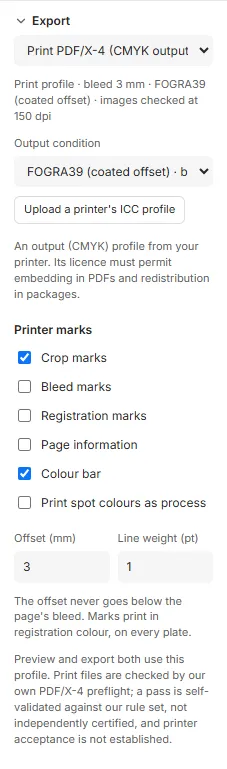
The line under the profile sums it up, for example: “Print profile · bleed 3 mm · FOGRA39 (coated offset) · images checked at 150 dpi”.
Give the pages a bleed, usually 3 mm, so that colour and images running off the edge survive trimming: see Pages.
Printer marks
Section titled “Printer marks”Under Printer marks, tick those your printer wants:
- Crop marks: where to trim.
- Bleed marks: where the bleed ends.
- Registration marks: for lining up the plates.
- Page information: a line outside the trim with the template’s name, the page number, its size and when it was exported.
- Colour bar: a patch of each process ink and each spot colour, for the press to measure.
Offset is how far from the trim the marks start; it never goes below the page’s bleed. Line weight (pt) is their thickness. Marks print in registration colour, on every plate.
To see the marks on the canvas, tick Show printer marks in Settings…: the canvas grows to the whole printed sheet.

Preview and export
Section titled “Preview and export”- Preview, in the header, shows the PDF the server makes, in place of the canvas. When you change the template, the preview says Out of date: click Refresh. Back to editor, or Esc, goes back.
- Export PDF downloads it, using the sample values:
document.pdf, ordocument-print.pdffor print.
Both need the server, and the template without errors. While there are errors, the preview still shows the PDF so you can see what’s wrong, without the PDF/X-4 claim.
The preflight
Section titled “The preflight”Every print PDF is checked against the PDF/X-4 rules before it is given out. Checks shows the result, “PDF/X-4 preflight PASS” with the number of rules, or the rules it failed. A PDF that fails is exported without its PDF/X-4 claim, and the export says so.
The preflight is Paprika’s own: a pass means the file keeps Paprika’s PDF/X-4 rule set. It isn’t an independent certification, so check new work with your printer.
Good to know
Section titled “Good to know”- A printer’s profile must be an output (CMYK) profile: a screen profile such as sRGB is refused. Its licence must allow embedding in PDFs and passing on in packages: the editor asks you to confirm.
- An uploaded profile is saved with the template, and travels in its packages.
- Images are checked against the template’s minimum resolution, 150 dpi unless it sets another: see Images.
- Documents made from the template through the API use the same profile, condition and marks.