

Publishing
Publishing puts a template on your organisation’s Paprika server, so that documents can be made from it. Each publish makes a new version; versions already published never change, so documents made from one stay the same.
Publish a template
Section titled “Publish a template”- Click Publish in the header.
- The first time, choose New template and give it a name (the package’s file name to begin with, such as
Summer studio.paprika), or choose one of your organisation’s templates to publish a new version of it. - Click Publish.
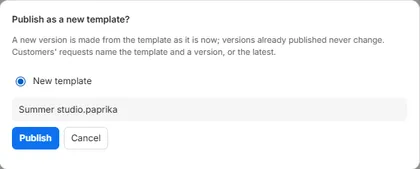
The editor says which version it published, for example “Published version 1 of Summer studio.paprika”. From then on, the template you’re working on is linked to it: Publish offers its next version, and the link is kept with your draft.
Publishing unchanged contents makes no new version: the editor says it’s that version already.
Before it publishes
Section titled “Before it publishes”The editor checks the template first. Errors in Checks stop publishing before anything is sent: for example text that doesn’t fit, or a required field without a sample. The server checks it again: anything it refuses is listed in Checks too.
A linked brand kit’s current items are applied as the template is published, so the version takes the brand as it is now.
Versions
Section titled “Versions”Integrators make documents from a template’s version, or from its latest one. A new version is used by requests for the latest straight away; requests for an older version keep getting that version.
So when you change a template that’s in use:
- publish when the change should reach the documents made from the latest version;
- tell your integrator when a change needs their values to change too, for example a new required field.
Open a published version
Section titled “Open a published version”More actions (⋯) → Open from server… lists your organisation’s published templates. Choose one to see its versions, when they were published and by whom, and click Open on a version.
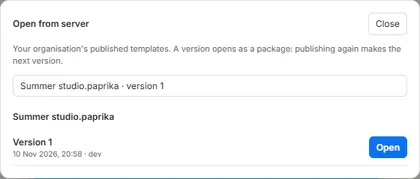
The version opens as you’d open a package, linked to its template: publishing it again makes the next version. If you have unsaved changes, the editor asks first.
Good to know
Section titled “Good to know”- Publishing needs the editor to be connected to the server.
- A template’s name is up to 200 characters.
- The template’s sample values are published with it, and must keep its fields’ rules.
- Publishing doesn’t save a package on your computer: save one too if you want a file.