

Fonts
Every template of your organisation draws on one font library: the fonts that come with Paprika, and the ones your organisation adds. Each font in it carries what its licence allows, and Paprika keeps to that everywhere: in the editor, on the server, in PDFs and in packages.
The fonts that come with Paprika
Section titled “The fonts that come with Paprika”- Liberation Sans, Liberation Serif and Liberation Mono, each regular, bold, italic and bold italic.
- Inter, from ExtraLight to Bold, and Montserrat, from Light to Bold with italics.
- Source Serif 4, regular, bold and italics.
- Noto Sans, Noto Sans Arabic and Noto Sans Hebrew, regular and bold.
They may be used everywhere, and can’t be removed.
Choose a font
Section titled “Choose a font”Select a text frame, or text in it, and choose the Font family and then its Face in the text section of the properties. The faces listed are the ones the library has: Paprika never makes a bold or an italic up, so a family without an italic has none to choose.
See the library
Section titled “See the library”Open Settings… from More actions (⋯), then Fonts… The Fonts dialog lists every family and its faces, each with where it comes from and four badges, what its licence allows:
- Editor: showing it in the editor.
- Server: rendering documents with it on the server.
- PDF: embedding it in PDFs.
- Packages: passing it on inside template packages.
Point at a badge to read what it means.
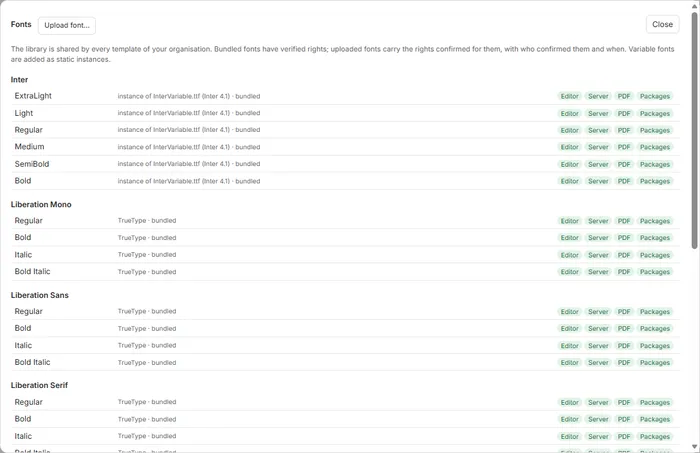
Add a font
Section titled “Add a font”- In the Fonts dialog, click Upload font… and choose the file: TrueType (
.ttf), OpenType (.otf), or a collection of either (.ttc,.otc). - For a variable font or a collection, tick the faces to add. A variable font’s named instances are added as faces of their own, each fixed at its weight and width.
- Tick what your licence allows. Display in the browser editor and Rendering on the server are needed to use the font at all; leave Embedding in exported PDFs or Redistribution inside template packages unticked if the licence doesn’t allow them.
- Add the licence’s address or text, if you have them, and tick the confirmation: it is recorded with your name and the time.
- Click Add to library.
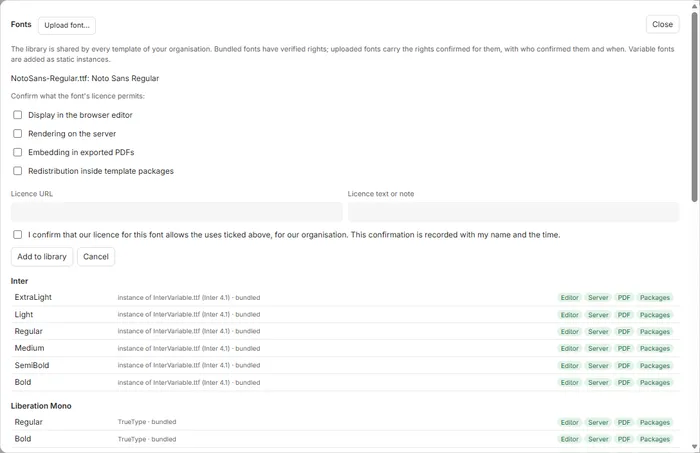
The font is then in the library for every template of your organisation.
When a licence doesn’t allow something
Section titled “When a licence doesn’t allow something”- Not in PDFs: Checks warns that the font may not be embedded, and preview, export and generated documents are refused until the text uses another font.
- Not in packages: saving a package that uses it is refused, naming the font.
- The font file itself can forbid embedding. Then the PDF and Packages boxes are greyed out when you add it, and pointing at them says so.
Good to know
Section titled “Good to know”- WOFF and WOFF2 files aren’t taken: convert them to
.ttfor.otffirst. - A variable font can’t be adjusted along its axes in a template: add the instances you need.
- If text uses characters its font hasn’t got, Checks says which, and offers the library’s fonts that have them.
- A font can’t be removed from the library while a published template version or a brand kit uses it. Only fonts your organisation added can be removed.
- Fonts that came in a package you opened are marked from this package; Add to library keeps them for your organisation, after you confirm their rights.
- Offline, a family this browser hasn’t used yet shows as (not available offline).
- Adding fonts needs the server.