

Arranging frames
Select several frames
Section titled “Select several frames”- Shift+click a frame to add it to the selection, or to take it out. Shift+click works on the rows of the Layers tab too.
- Drag across an empty part of the page to select every frame the rectangle touches. Hold Alt to select only the frames it encloses.
- CtrlA selects every frame on the page that isn’t locked.
- Esc clears the selection.
Dragging or nudging any of the selected frames moves them all by the same amount. Double-click one of them to edit it alone.

Align and distribute
Section titled “Align and distribute”With several frames selected, the Align section lines them up.
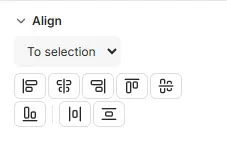
- Choose what to align to: To selection (the rectangle around the selected frames) or To page. A single frame is always aligned to the page.
- Click Align left, Align centre, Align right, Align top, Align middle or Align bottom.
Distribute horizontally and Distribute vertically make the gaps between three or more frames even, keeping the outermost frames where they are.
A rotated frame is aligned by the upright rectangle around it.
Stacking order
Section titled “Stacking order”Frames higher in the stack are painted over those below. The Layers tab lists a page’s frames top-most first. To change the order:
- In the frame’s right-click menu, choose To front, Forward, Backward or To back, or press CtrlShift], Ctrl], Ctrl[ or CtrlShift[.
- Drag a frame’s row in the Layers tab, or select the row and press AltUp or AltDown.
Several selected frames move together and keep their order among themselves. The stacking order never changes how text flows: text wraps around a frame whether it is above or below.
Click a frame beneath another
Section titled “Click a frame beneath another”A click picks the top-most frame under the pointer. To reach one beneath it:
- Ctrl+click to select the next frame down; click again to go further, round to the top.
- Shift+Ctrl+click to add the frame beneath to the selection.
- Once a frame is selected, drag it even where another frame covers it. Ctrl+drag moves the selection without selecting anything else.
A click goes by a frame’s shape: a click in the empty corner of an ellipse picks what is beneath it.
Lock a frame
Section titled “Lock a frame”A locked frame can’t be selected, moved or edited on the canvas: clicks go through it to what is beneath, so you can work on a page without disturbing its background.
Lock a frame with the padlock on its row in the Layers tab, Locked at the top of its properties, or Lock in its menu. Select it from the Layers tab to unlock it again, or change it from its properties: the properties still work on a locked frame.
Locked frames are left out when you select all, align or distribute, and can’t be cut or deleted until they are unlocked. A copy of a locked frame isn’t locked.
Hide a frame
Section titled “Hide a frame”A hidden frame isn’t shown or exported, but the rest of the page is laid out as if it were there: nothing else moves.
Hide a frame with the eye on its row in the Layers tab, Hidden at the top of its properties, or Hide in its menu (CtrlShiftH); Show brings it back. Checks lists the hidden frames, so none is forgotten. Clicks on the canvas go through a hidden frame.
Good to know
Section titled “Good to know”- A lock only matters in the editor: a locked frame is laid out and exported as usual.
- Hiding is saved with the template: a hidden frame is left out of every document made from it, until you show it again.
- Distribute horizontally and Distribute vertically need three or more frames that aren’t locked.