

Frames
Everything on a page is in a frame: a text frame holds text, an image frame an image. This page is about what all frames have in common: their place, size, rotation and name.
Draw a frame
Section titled “Draw a frame”Choose Text frame (T) or Image frame (R) in the tools at the bottom of the canvas, then drag on the page. A click instead of a drag makes a frame of the default size. A right-click on an empty part of the page offers Add text frame here and Add image frame here.
Dropping an image file onto the page makes an image frame for it: see Images.
Move, resize and rotate
Section titled “Move, resize and rotate”Click a frame to select it, then:
- Move it by dragging, or with the arrow keys: a point at a time (a pixel in a pixel template), ten with Shift.
- Resize it by dragging one of its eight handles. The opposite edge or corner stays where it is. Hold Shift on a corner to keep the frame’s proportions, and Alt to resize around its centre.
- Rotate it with the round handle above it. Hold Shift to turn in steps of 15°. A frame turns around its reference point, the top-left corner unless you choose another.
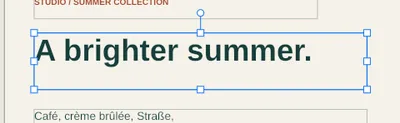
While you drag, the frame snaps to guides, the page and other frames: see Rulers, guides and snapping.
Type an exact place and size
Section titled “Type an exact place and size”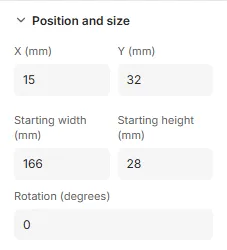
The Position and size section has the frame’s X and Y (where its reference point is, from the page’s top-left corner), its Starting width and Starting height, and its Rotation (degrees). Type a value and press Enter.
The size is the starting size because a text frame can grow with its text: see Auto-size. A frame without auto-size keeps exactly this size.
With several frames selected, the boxes show the value they share, or Mixed; a value you type is given to each of them.
Name a frame
Section titled “Name a frame”Every frame has a name, shown in the Layers tab and at the top of its properties. Anchors and the checks refer to frames by name. To rename one, select its row in the Layers tab and press F2, or click its name again. Anchors to the frame follow the new name.
Copy, paste and duplicate
Section titled “Copy, paste and duplicate”CtrlC, CtrlX and CtrlV copy, cut and paste the selected frames, also from one page or template to another. They are in the frame’s right-click menu too.
- Pasted on the page they came from, the copies are named after the originals with
-copy, and go 15 pt down and to the right; pasting again goes a step further. - Pasted on another page, or into another template, they keep their place on the page. Their images and fonts come along. Anchors to frames that weren’t copied are detached, and the editor tells you so; the frames stay where they were.
- Paste in place (CtrlShiftV, or a right-click on an empty part of the page) pastes at the same place even on the original page.
- Duplicate in the frame menu copies and pastes in one step, keeping the copy’s anchors.
Pasted frames are never locked, even when the frames you copied were.
Good to know
Section titled “Good to know”- A frame is at least 4 pt (1.41 mm) on each side.
- A frame with auto-size can’t be made smaller than its minimum or larger than its maximum; the reason shows under the box.
- When a frame is too small on screen for all its handles, only the corners show. Zoom in to reach the others.
- A frame’s name is unique on its page, and can’t be
page, which anchors use for the page itself. - Every change can be undone with CtrlZ.