

Text
Text lives in text frames. You format it in the text section of Properties: what you change there applies to the whole frame, or to the text you have selected in it.
Add a text frame
Section titled “Add a text frame”- Choose the Text frame tool (T).
- Drag on the page for a frame of that size, or click for one of the default size, with Your text in it.
- Double-click the frame, or press Enter, and type.
Press Esc to stop editing. To put a field’s value in the text, see Insert a field below.
Edit and format text
Section titled “Edit and format text”While you edit, select text with the mouse (double-click a word, triple-click a paragraph) or with Shift and the arrow keys; CtrlA selects all of it. The line at the top of the text section says what its settings will change:
- Whole frame: the frame is selected, not being edited.
- Selected text: the text you selected.
- Typing style: no text selected: the next text you type.
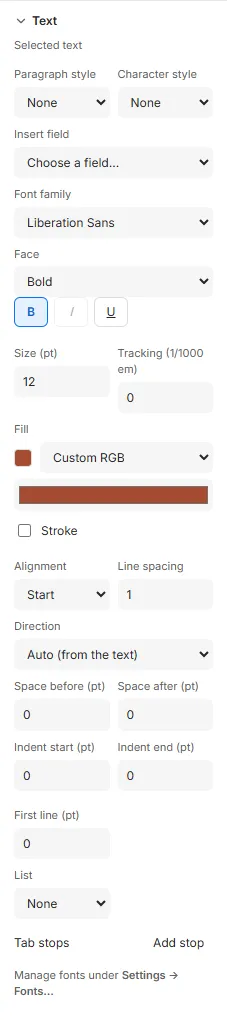
The character settings, for the selected text: Font family and Face, bold (CtrlB), italic (CtrlI) and underline (CtrlU), Size (pt), Tracking (1/1000 em), Fill and Stroke. When the selected text differs, a setting shows Mixed.
Enter starts a new paragraph; there are no line breaks within one. Tab types a tab: see Tab stops.
Paragraph settings
Section titled “Paragraph settings”These apply to every paragraph the selection touches:
- Alignment: Start, Centre, End, Left or Right. Start and End follow the paragraph’s direction: Start is the left in English and the right in Arabic.
- Line spacing: a multiple of the text size, 1.15 by default.
- Space before (pt) and Space after (pt).
- Indent start (pt) and Indent end (pt) move the lines in from the frame’s edges. First line (pt) moves the first line further in, or, negative, out: a hanging indent, which stops at the frame’s edge.
- Direction: see Right-to-left text.
Lists and tab stops are paragraph settings too: see Lists and Tab stops. To give paragraphs the same look across a template, use styles.
Tracking
Section titled “Tracking”Tracking (1/1000 em) adds space after each character, in thousandths of the text size, from -300 to 1000. While editing, AltLeft and AltRight change it by 10, by 50 with Shift. No space is added after a line’s last character, and tracked text loses ligatures such as fi. Arabic script is never tracked: Checks says so.
Outlined text
Section titled “Outlined text”Fill is the letters’ colour: a colour of your own, a swatch at a tint, or none. Tick Stroke for an outline, with its colour, Width (pt) and Alignment:
- Outside: behind the fill, so the letters keep their shape.
- Centre: on the letters’ edge.
Text with no fill gets an outline, so it can’t disappear. An outline doesn’t change how the text breaks into lines, and can spread past the frame. Outlines thinner than 0.25 pt may not print reliably, and Checks warns about them.
Right-to-left text
Section titled “Right-to-left text”Each paragraph’s direction comes from its text, with Direction on Auto (from the text): its first letter of a script with a direction decides. Choose Right to left or Left to right to set it. While editing, you can also press Ctrl with the right Shift key for right to left, and with the left one for left to right.
In a right-to-left paragraph, Start alignment, indents and tab stops are measured from the right. Lines that mix scripts are laid out in reading order, and the arrow keys move along them as you see them. A field’s value never reorders the text around it.
Arabic and Hebrew need a font with their letters: Noto Sans Arabic and Noto Sans Hebrew come with Paprika. They have no Latin letters or digits, so text that mixes scripts needs a font for each.
Insert a field
Section titled “Insert a field”While editing, put the caret where the value goes, then choose the field in Insert field in the text section, or in the field menu of the tools at the foot of the canvas. The field shows as its sample value, tinted while you edit, and moves and deletes as one piece. To make fields and give them samples, see Fields.
When text doesn’t fit
Section titled “When text doesn’t fit”Unless the frame grows with its text (Auto-size, in its Layout section: see Anchors and auto-size) or fits it (below), text that doesn’t fit is an error in Checks, and the template can’t be exported or published until it fits. While you edit, the text that doesn’t fit shows faded below the frame, so you can still reach it.
Fit text to the frame
Section titled “Fit text to the frame”When a frame’s text changes length from document to document, a headline or a price say, it can fit the frame instead of overflowing. Select the frame and, in its Layout section, tick Fit text to the frame.
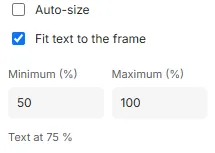
All the frame’s text is then shown at one percentage of its sizes, the largest that fits from the Minimum (%) to the Maximum (%): 50 to 100 to start with, anywhere from 10 to 1000. The space before and after paragraphs is scaled with it, so the text keeps its proportions; indents and tab stops stay where they are. Under the boxes, the frame says the percentage it’s shown at, and the Size box in the text section keeps the size you set, with the size shown under it.
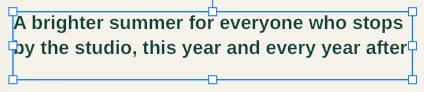
- A maximum above 100 makes short text larger, to fill the frame. It never makes the frame grow for it.
- A frame that also has Auto-size grows first, up to its maximum, and only then makes its text smaller.
- A word too long for a line is made smaller before it’s broken.
- Text that doesn’t fit even at the minimum is still an error in Checks, and the frame says so.
- Each document fits its own values, so a long name gets smaller and a short one doesn’t.
Good to know
Section titled “Good to know”- Bold and italic need the family to have those faces: Paprika never makes them up. When it hasn’t, the button is greyed out, and says so.
- Text pasted from another app comes in plain; text copied from a Paprika frame keeps its formatting.
- Characters the font hasn’t got are an error in Checks, which offers the library’s fonts that have them.